Storage & Preventing Data Loss
SD Cards Are Not (Really) a Storage Medium
You need to set up Syncthing not only on the device you are using to create the transcripts, but also on your main computer — or any computer in your network, you like to store the finished transcripts on.
The Raspberry Pi 500 uses an SD card as main storage medium. While modern SD cards offer plenty of space, they are by far not a secure storage medium. A potential failure of the SD card and resulting data loss will be a real concern, especially when your applications writing a lot of data on the card — as audio capture typically does.
There are several steps you can take, to prevent data loss:
- Using a normal Raspberry Pi 5 with added SSD storage
- Attaching external storage (this might lead to problems, if writing to the device will become too slow)
- Syncing the files in the background with another device.
While 1. will make your project sadly a lot more expensive, the second option can be done with Open-Source tools.
Installing Syncthing
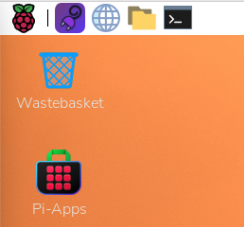
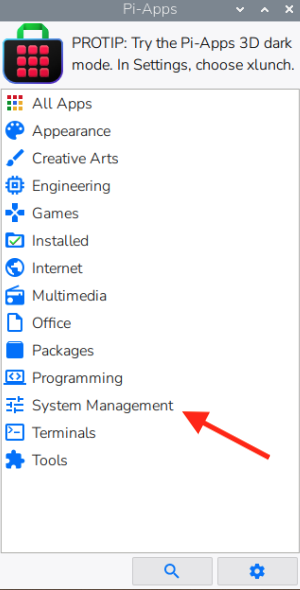
Open Pi-Apps and from the System Management menu choose and install Syncthing.
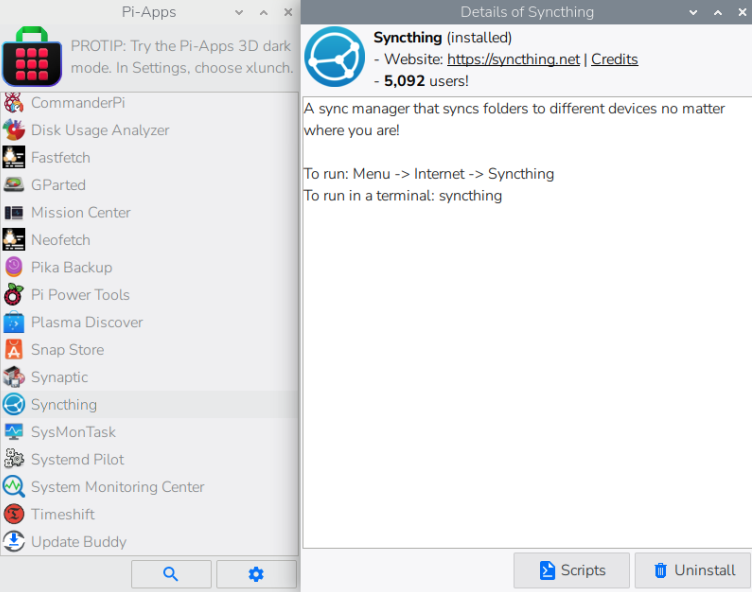
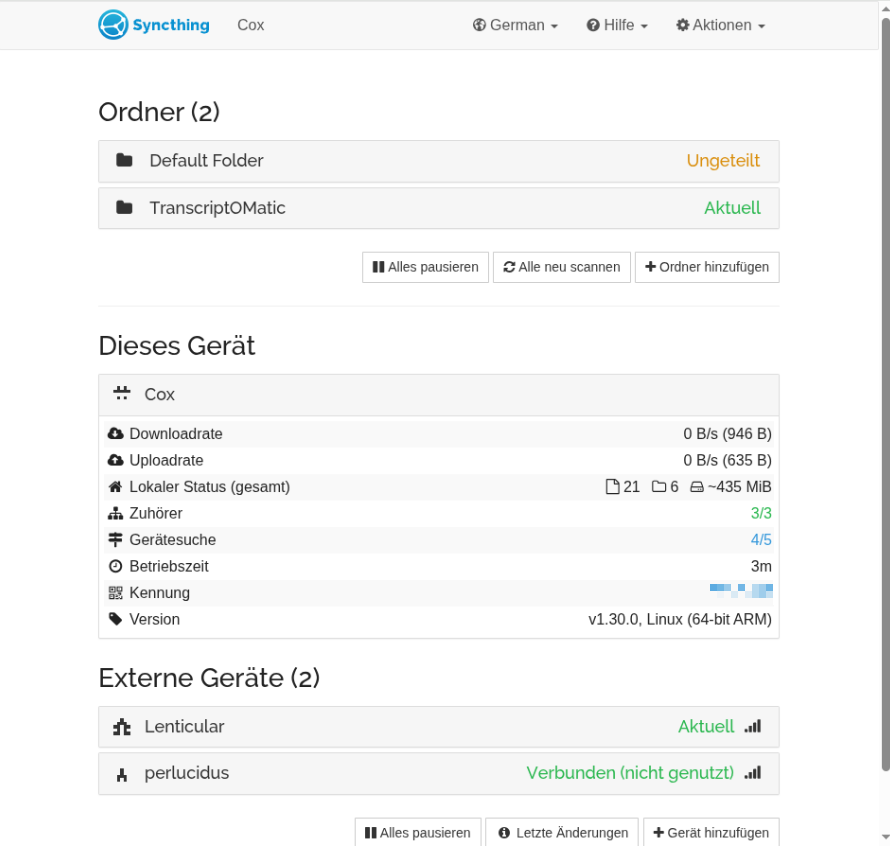
After the installation finished, first start Syncthing and then open the Syncthing Web UI. (Usually http://localhost:8384/)
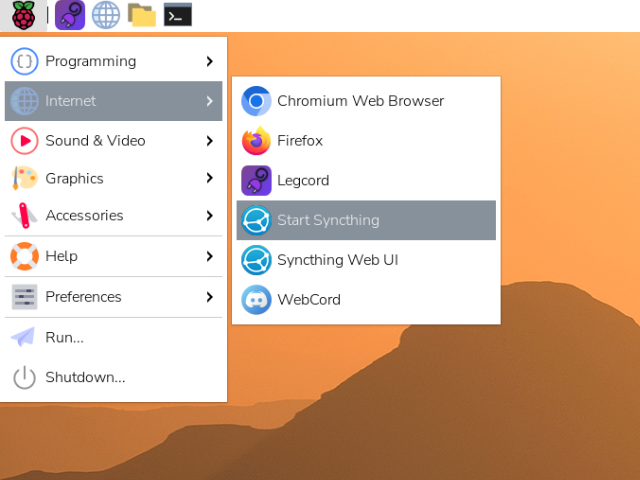
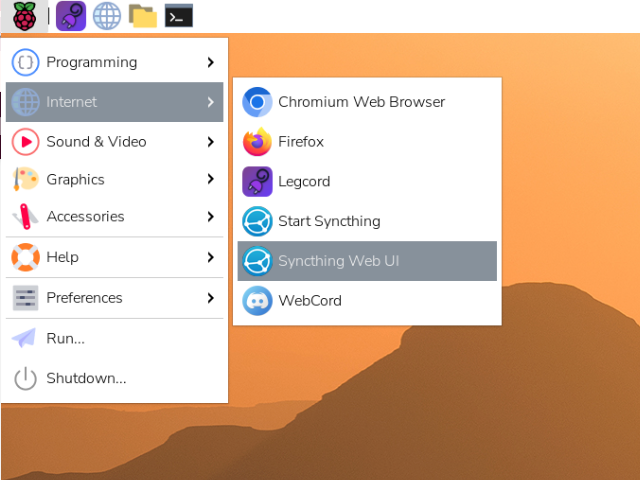
Now configure your transcripts folder ~/meetings/recordings as a synced folder and invite another device in your home network to join. If you like, you can set this folder to "Send only".
I recommend to set versioning for this folder to "Off".
If you use file sync, remember to delete the recordings from all your devices after your session is finished and the transcript written. You can prevent the .wav files from syncing altogether by using the "Ignore Patterns" option.