
Installing and Setting-Up Legcord
The official Discord client currently isn't available for devices operating ARM processors on Windows or Linux2. The app Legcord will act as a replacement.
Installation
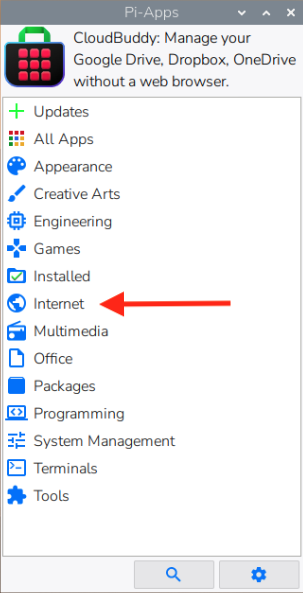
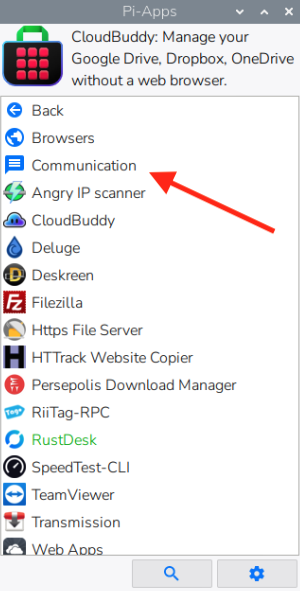
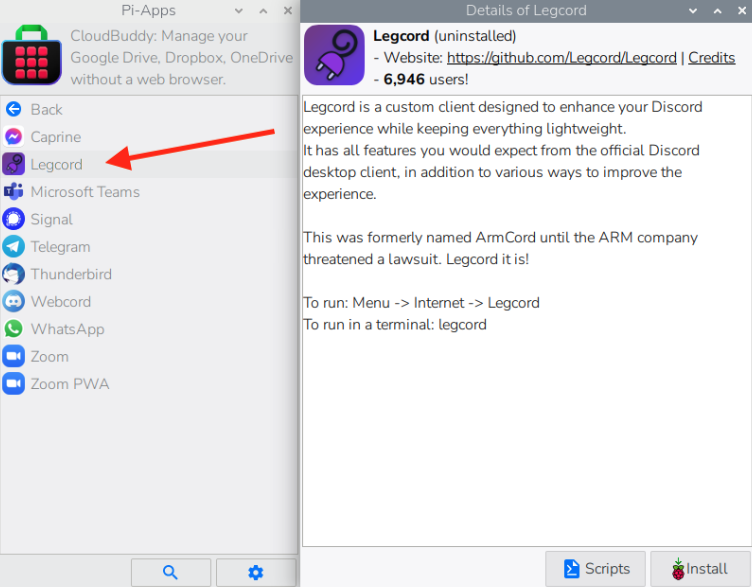
Open Pi-Apps and go to Internet → Communication → Legcord to install.
Post-Installation Set-up
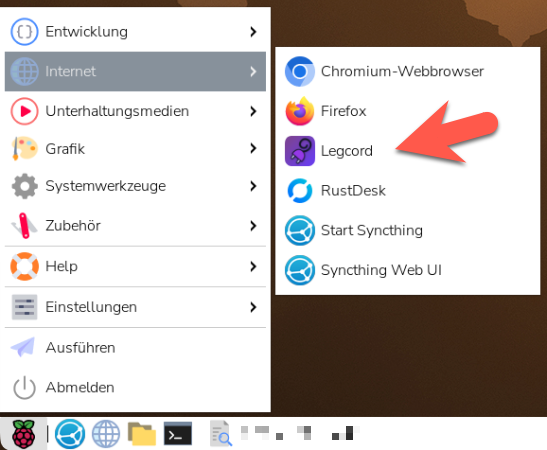
Start Legcord from the applications'applications menu.menu in the upper-left corner. This will start Legcord via the /opt/Legcord/legcord-wayland.sh script and thus with the right settings for the Raspberry Pi Wayland GUI. (Path may vary depending on the installed version.)
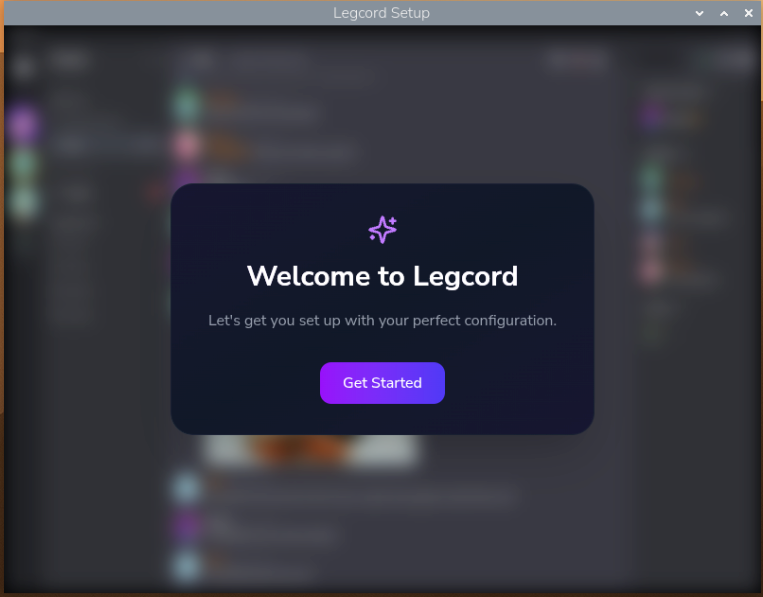
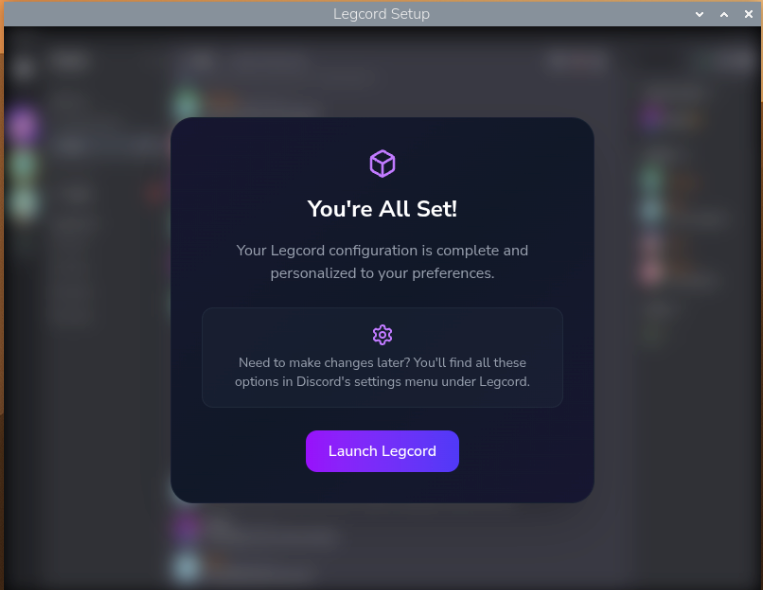
When starting Legcord for the first time, you'll be asked to set some basic options.
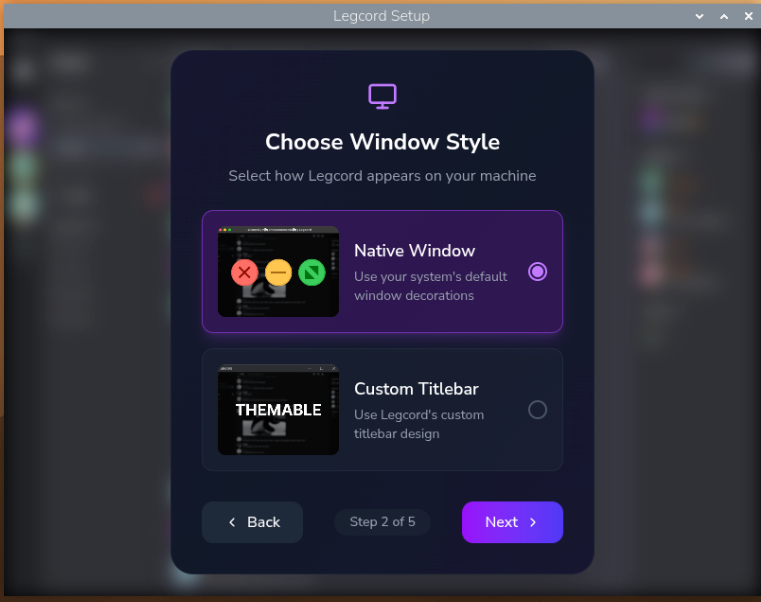
I chose the native windows style to limit possible compatibility problems down the line and to work in an environment that I'm already used to.
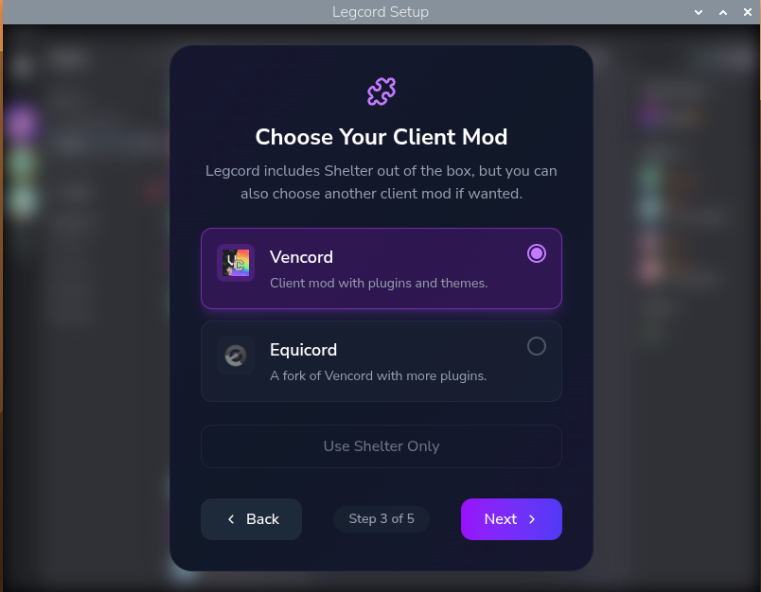
I've chosen Vencord over Equicord for stability and to prevent against getting my account banned for breaking Discord's Terms of Service.
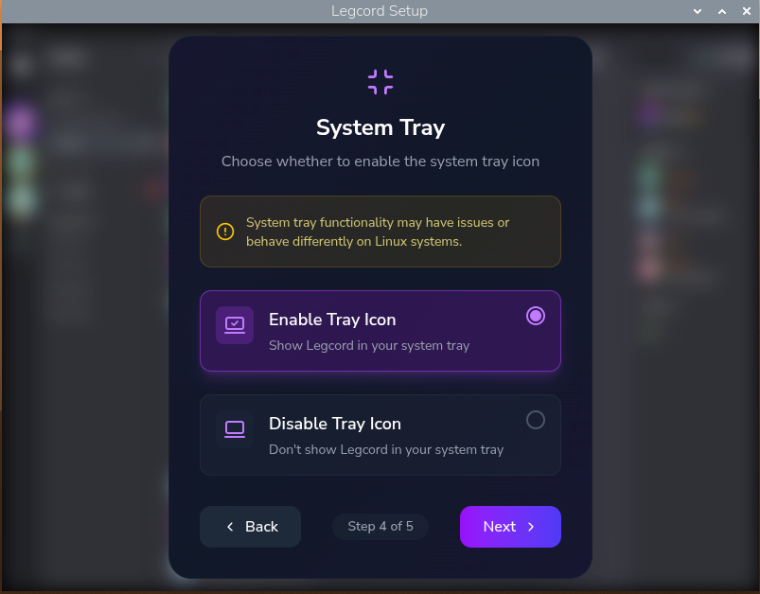
I've chosen to enable the system tray icon as a personal preference.
2) There is an official Discord client for macOS on ARM processors, though.