# Installing and Setting-Up Legcord
The official Discord client currently isn't available for devices operating ARM processors on Windows or Linux2. The app [*Legcord*](https://legcord.app/) will act as a replacement.
### Installation
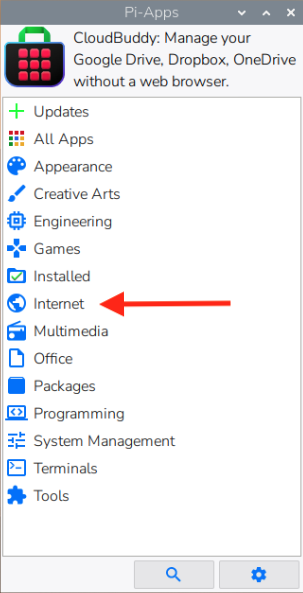
Open Pi-Apps and go to Internet → Communication → Legcord to install.
[](https://info.zusammenkunft.net/uploads/images/gallery/2026-02/pi-apps-menu-nvdmpabopj.png)[ 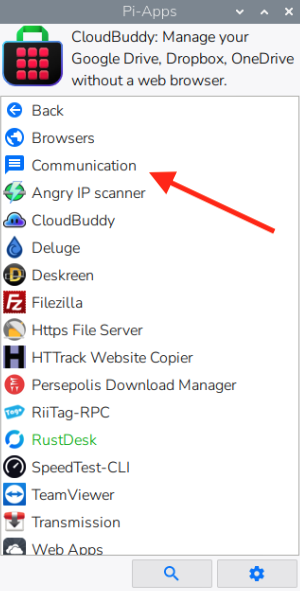 ](https://info.zusammenkunft.net/uploads/images/gallery/2026-02/pi-apps-menu-yhrxxsxiqo.png)[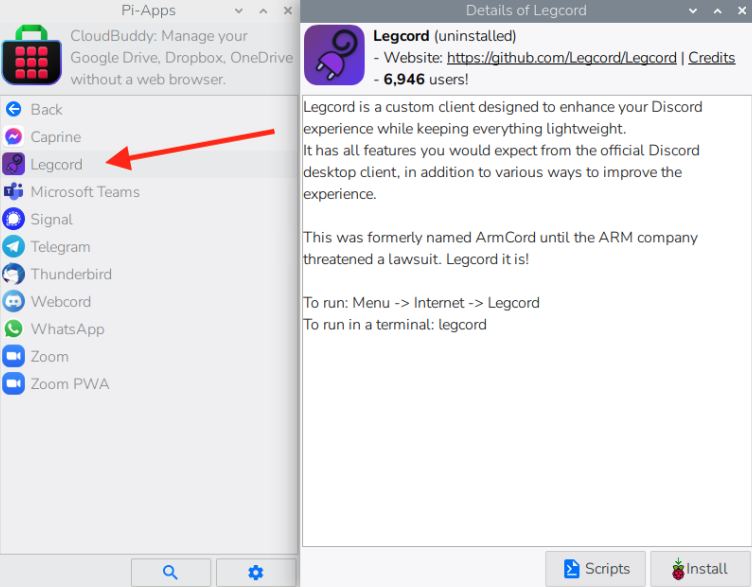](https://info.zusammenkunft.net/uploads/images/gallery/2026-02/legcord-installation-details.png)
### Post-Installation Set-up
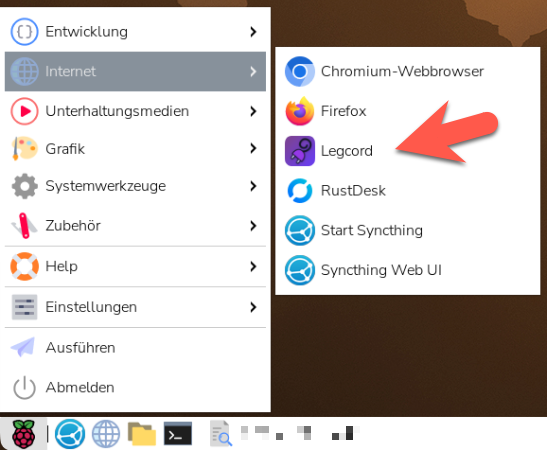
Start Legcord from the applications menu in the upper-left corner. This will start Legcord via the `/opt/Legcord/legcord-wayland.sh` script and thus with the right settings for the Raspberry Pi Wayland GUI. (Path may vary depending on the installed version.)
[](https://info.zusammenkunft.net/uploads/images/gallery/2026-01/raspberry-pi-internet-menu.png)
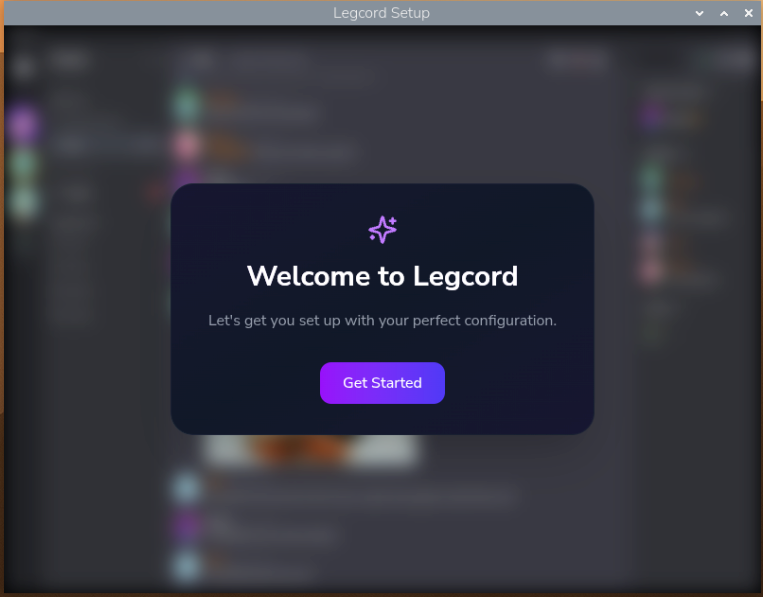
When starting Legcord for the first time, you'll be asked to set some basic options.
[](https://info.zusammenkunft.net/uploads/images/gallery/2026-01/welcome-to-legcord.png)
[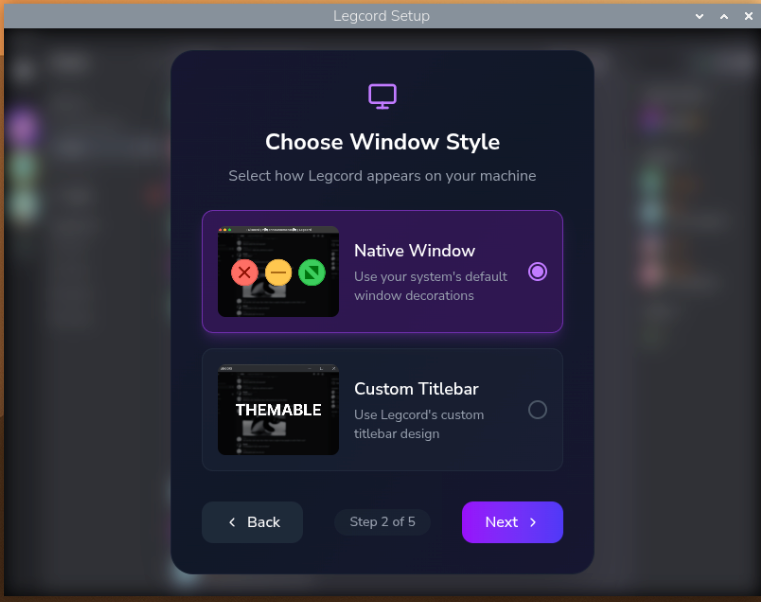](https://info.zusammenkunft.net/uploads/images/gallery/2026-01/legcord-setup-choose-window-style-plzg3agb2l.png)
I chose the native windows style to limit possible compatibility problems down the line and to work in an environment that I'm already used to.
[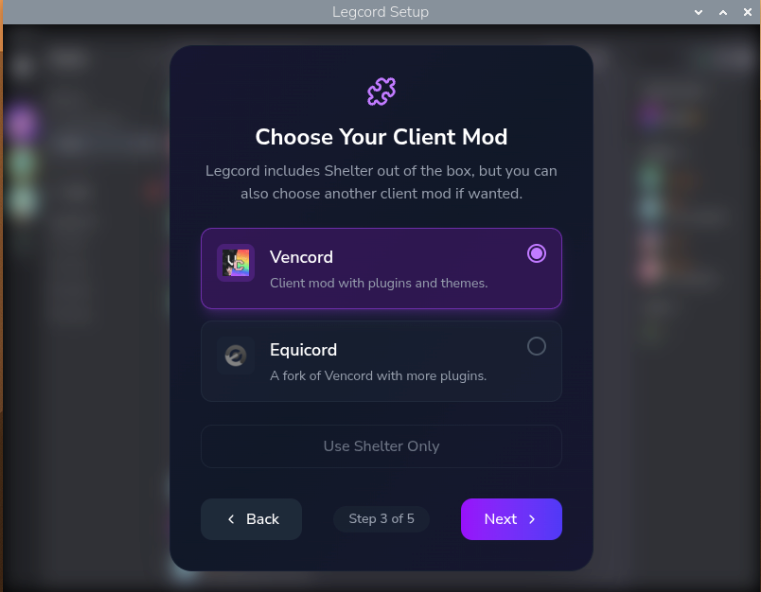](https://info.zusammenkunft.net/uploads/images/gallery/2026-01/legcord-client-mod-selection.png)
I've chosen Vencord over Equicord for stability and to prevent against getting my account banned for breaking [Discord's Terms of Service](https://discord.com/terms).
[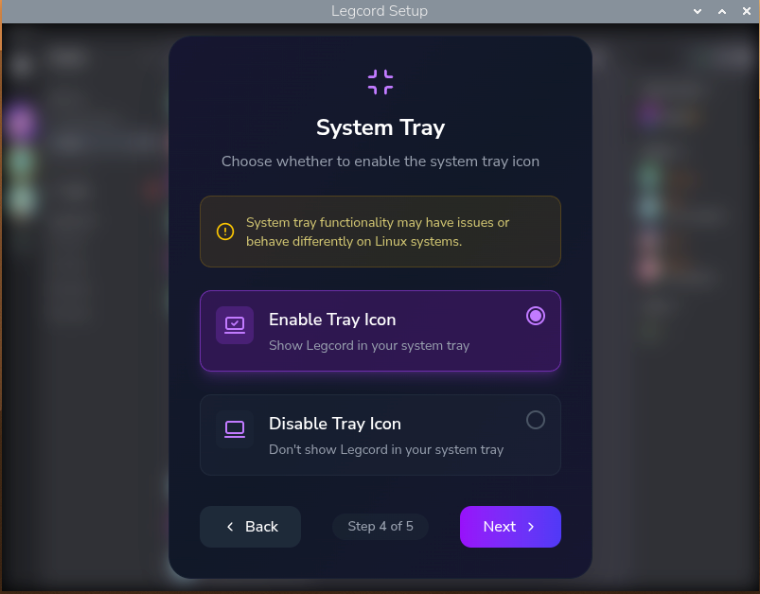](https://info.zusammenkunft.net/uploads/images/gallery/2026-01/legcord-setup-system-tray-options.png)
I've chosen to enable the system tray icon as a personal preference.
[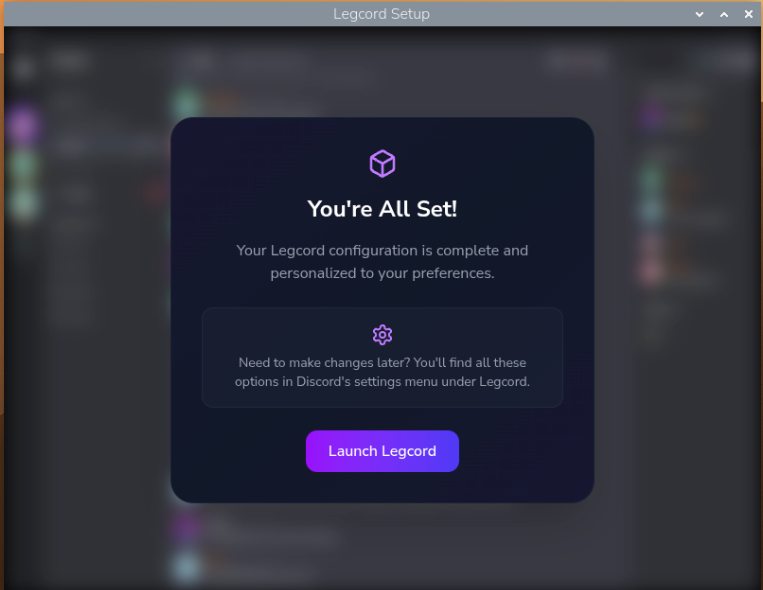](https://info.zusammenkunft.net/uploads/images/gallery/2026-01/legcord-setup-complete-j0magn-mg1.png)
2) There is an official Discord client for macOS on ARM processors, though.